Below
Darker than macOS allows.
Under about 6%, the screen stays on and the image keeps dimming through 0% to black.
A Mac menu bar app for brightness past the limits macOS will set.
$9
One-time purchase. Updates included. Requires macOS 26.6 or later.
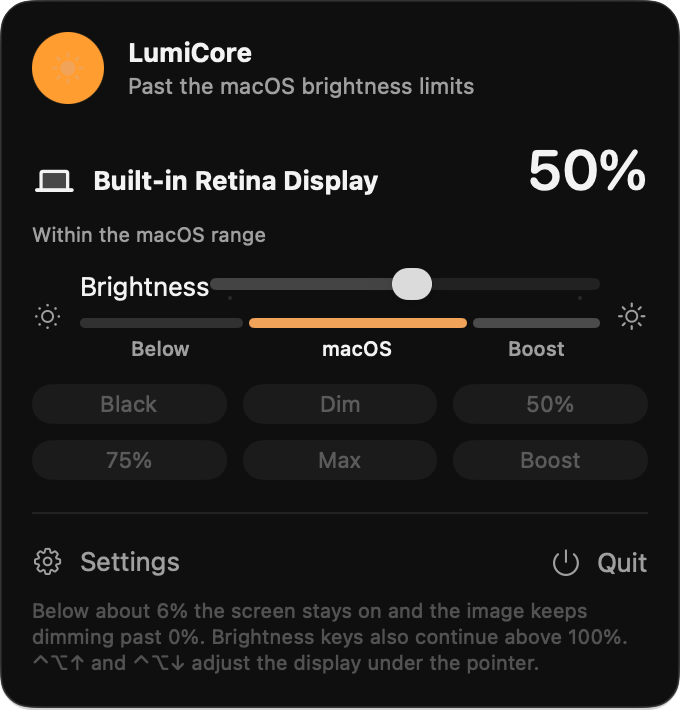
Below
Under about 6%, the screen stays on and the image keeps dimming through 0% to black.
Boost
The ceiling is yours, from 110% to 200%. Midtones get brighter. Highlights can clip.
Black, Dim, half, 75%, the macOS maximum, and your boost ceiling.
The display under the pointer.
Brightness keys continue outside the macOS range. The shortcuts do not need Accessibility access.
Below is darker than the system minimum. The middle is the range Control Center and the brightness keys already use. Boost continues past 100%. Each display has its own slider. With more than one, they can move together.
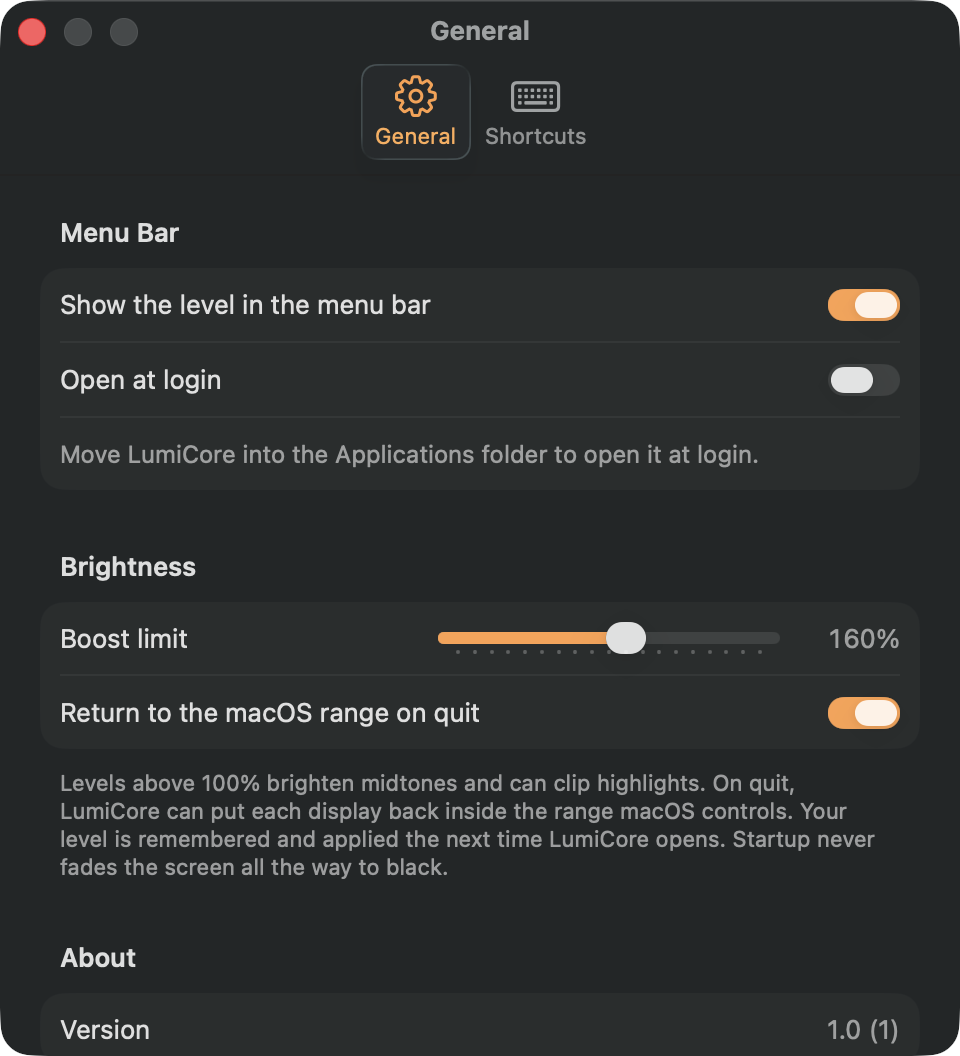
The menu bar icon follows the zone, and can show the level. On quit, LumiCore can put each display back inside the range macOS controls. Your level is remembered. Startup never fades the screen all the way to black.
A brightness key keeps moving once the level leaves the macOS range. Below the minimum, one step is 2% of the way to a black image and the screen stays on. Above 100%, one step is 1%. You choose how many steps each press takes.
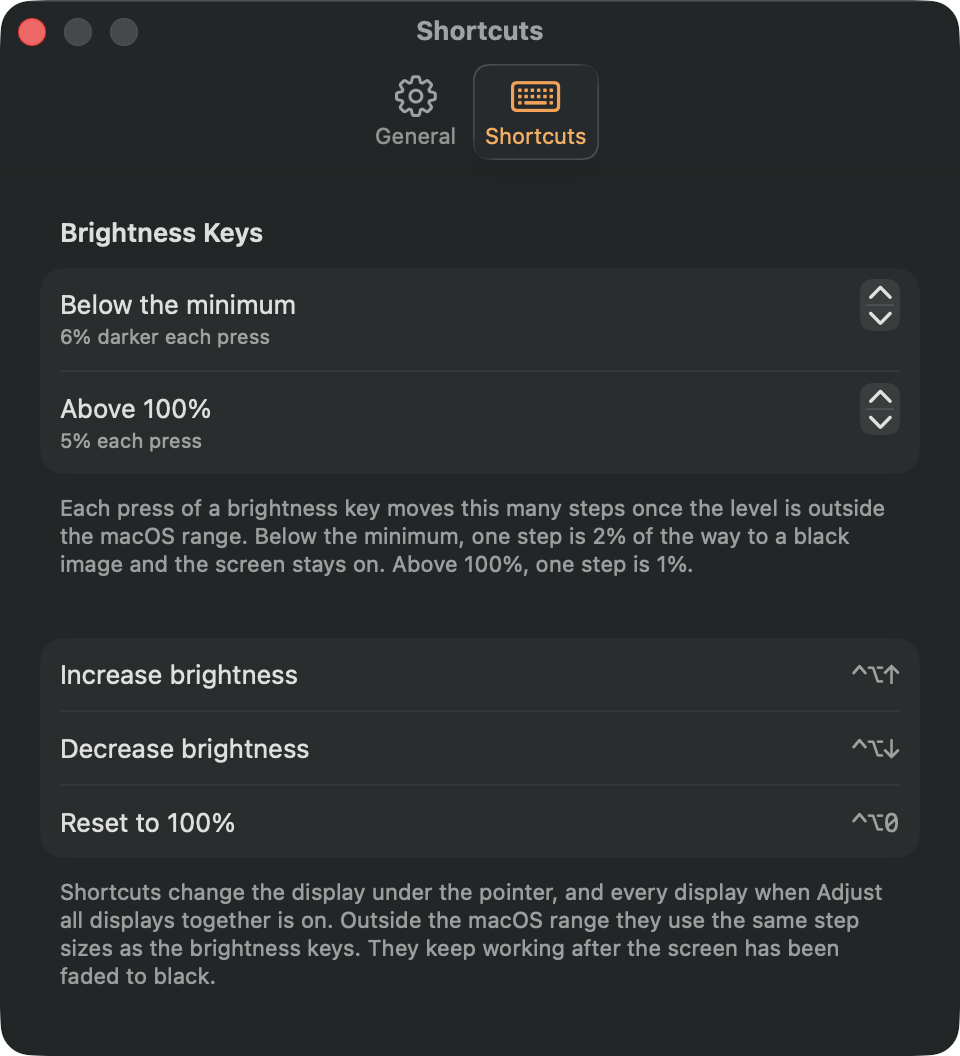
Control-Option-Up, Control-Option-Down, and Control-Option-0 change the display under the pointer, or every display when they are linked. They keep working after the image has faded to black.
macOS 26.6 or later.
Lemon Squeezy emails the download and a license key as soon as the payment is complete. Open LumiCore and enter that key. It activates this Mac.
No account. Enter the license key from the receipt to activate this Mac. Levels, presets, and the boost ceiling stay on the Mac.
No. Below about 6%, the panel stays lit and the image keeps dimming. Black is a black image with the screen still on. Opening LumiCore never starts from a fully black screen.
It continues past 100%, up to a ceiling you set between 110% and 200%. Levels above 100% brighten midtones and can clip highlights.
Control-Option-Up increases brightness, Control-Option-Down decreases it, and Control-Option-0 returns the display to 100%. They change the display under the pointer, or every display when Adjust all displays together is on. They do not need Accessibility access, and they keep working after the image has faded to black.
Yes, after you move LumiCore into the Applications folder.
Email [email protected] within 14 days.
$9
One-time purchase. Updates included.
BuyCheckout stays on this page, through Lemon Squeezy, the merchant of record. Tax is calculated before you pay. The download and license key arrive by email.